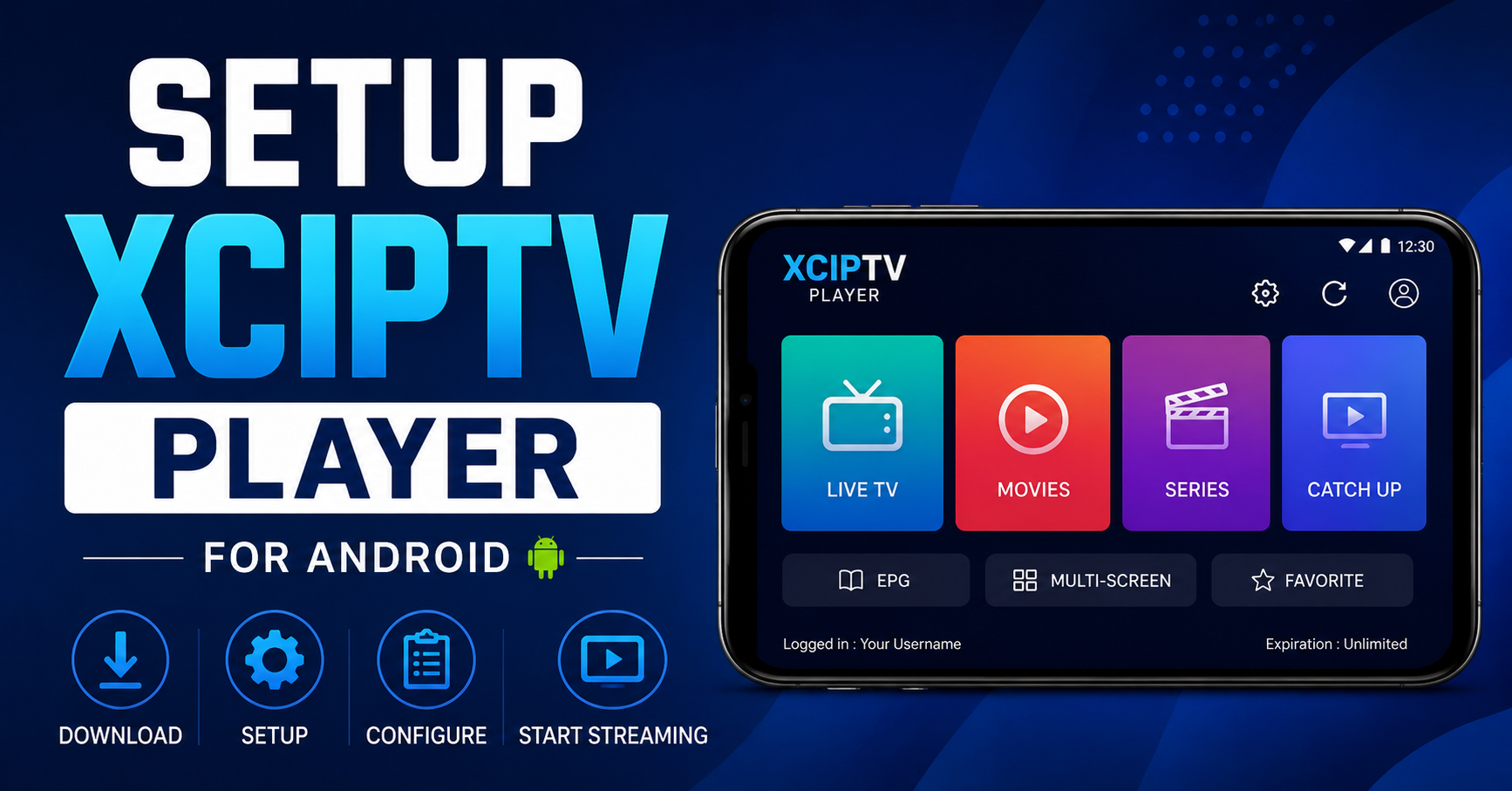
Somewhere between the fifth failed login attempt and the third “server not found” popup, most people give up on XCIPTV. They shouldn’t. The app is quietly one of the most capable IPTV front-ends available on Android — but only if you know what you’re actually configuring behind the splash screen. This isn’t a walkthrough copied from a YouTube comment section. If you want to setup XCIPTV Player for Android and have it actually perform under real conditions — multiple users, heavy EPG loads, peak-hour congestion — keep reading.
Why XCIPTV Keeps Outperforming Flashier Android Players
XCIPTV doesn’t win beauty contests. Its interface feels utilitarian, almost dated compared to competitors like TiviMate or IPTV Smarters Pro. But that stripped-back approach is exactly why operators and IPTV UK resellers keep coming back to it.
The app handles Xtream Codes API logins natively. It parses M3U playlists without choking on oversized lists. Its EPG engine refreshes on a schedule you control, not one baked into the app’s backend. For anyone who needs to setup XCIPTV Player for Android across dozens of subscriber devices, that level of control matters more than gradient buttons.
Where it truly separates itself is codec handling. XCIPTV lets you toggle between hardware and software decoding on a per-stream basis. That single feature eliminates half the buffering complaints resellers deal with on budget Android boxes.
Pro Tip: If you’re deploying XCIPTV across multiple devices for subscribers, create a standardised settings export. Configure one device perfectly, export the backup file, and load it onto every new box. Saves hours during bulk onboarding.
Before You Touch the App: Pre-Installation Checklist
Rushing into installation is where things go sideways. Before you setup XCIPTV Player for Android, sort out these three things or you’ll be troubleshooting in circles later.
First — verify your Android version. XCIPTV requires Android 5.0 minimum, but anything below Android 8.0 will struggle with EPG-heavy configurations. If your device is running Android TV (not standard Android), the app behaves differently with remote navigation, so test that before rolling it out to customers.
Second — check your DNS configuration. If your ISP is doing any level of DNS-based filtering, XCIPTV will connect but channels will timeout silently. Switch to a third-party DNS resolver at the device level before installing.
- Open device Settings → Network → Advanced
- Set DNS 1 to a reliable public resolver
- Set DNS 2 to a secondary resolver as failover
- Restart the device fully — not just a soft reboot
Third — storage space. XCIPTV caches EPG data locally. A playlist with 8,000+ channels can generate cache files exceeding 200MB. Devices with less than 1GB free storage will experience forced cache clears, which wipes your EPG and makes the app feel broken.
Step-by-Step: How to Setup XCIPTV Player for Android Using Xtream Codes
This is the method that works for 90% of reseller panels. If your provider gave you a server URL, username, and password — this is your path.
Open XCIPTV. On the home screen, tap “Add Playlist.” Select Xtream Codes Login — not the M3U option, even if you have an M3U link. The Xtream method gives you category sorting, catch-up, and proper EPG mapping. M3U strips most of that.
Enter your credentials exactly as received:
- Server URL: Include the port number. If your provider sent something like http://example.com:8080, enter the full string. Dropping the port is the single most common reason setup fails.
- Username and Password: Case-sensitive. Copy-paste rather than typing manually. A single wrong character returns a generic “authentication error” with no useful detail.
- Playlist Name: Label it something identifiable. If you manage multiple subscriptions or test panels, naming matters.
Tap Login. The app will pull your channel list, VOD catalogue, and series library. First-time sync on a large playlist can take 60–90 seconds on a stable connection.
Pro Tip: If the login hangs beyond two minutes, the issue is almost never the app. It’s either the panel server being overloaded, or your ISP throttling the API port. Test the same credentials in a browser — if the JSON output loads, the server is fine and your network is the bottleneck.
Setup XCIPTV Player for Android with an M3U Playlist URL
Some providers only distribute M3U links. It’s not ideal — you lose Xtream-specific features — but XCIPTV still handles it reasonably well.
From the Add Playlist screen, choose M3U URL. Paste the full link, including any token parameters appended to the end. These tokens authenticate your session, and trimming them accidentally will give you a valid-looking playlist with zero working channels.
The critical difference when you setup XCIPTV Player for Android via M3U is EPG handling. Xtream logins auto-map EPG data. M3U playlists don’t. You’ll need to manually add your EPG URL under the playlist settings after the initial load.
Navigate to Settings → EPG Source → Custom URL, paste the XMLTV link your provider gave you, and set the refresh interval to every 12 hours. More frequent than that hammers the EPG server unnecessarily. Less frequent means your guide data drifts out of sync by evening.
| Feature | Xtream Codes Login | M3U Playlist |
|---|---|---|
| Auto EPG Mapping | Yes | No — manual setup required |
| Catch-Up TV | Supported | Rarely works |
| Category Sorting | Server-defined | Depends on M3U formatting |
| VOD & Series | Full library access | Limited or missing |
| Setup Complexity | Lower | Higher |
Codec and Buffer Settings That Actually Reduce Freezing
Here’s where most “how to setup XCIPTV Player for Android” guides stop — at the login screen. But login is just access. Performance is configuration.
Go to Settings → Player Settings. You’ll see options for decoder type, buffer size, and player engine. Here’s what matters.
Decoder type should be set to Hardware first. If specific channels stutter or show green artifacts, switch those to Software decoding. Hardware decoding offloads work to your device’s GPU, which is faster but less compatible with unusual stream codecs. Software decoding uses the CPU — slower, but handles edge-case codecs that hardware can’t.
Buffer size is where people hurt themselves. Setting it too high (5000ms+) doesn’t prevent buffering — it creates a delay that makes channel switching painfully slow and introduces audio sync drift. Set it between 1500ms and 3000ms. That range balances stream stability against responsiveness.
- Buffer below 1000ms: channels switch fast but freeze on congested streams
- Buffer at 2000ms: best middle ground for fibre and stable 4G connections
- Buffer above 4000ms: noticeable channel-switch lag, audio drift on live sport
Pro Tip: If a subscriber complains about buffering only during evening peak hours (7–10pm), it’s almost never a codec problem. It’s HLS latency from server congestion. Advise them to switch to a backup server URL if your panel supports multiple uplinks. This single fix resolves roughly 40% of “buffering” tickets.
EPG Configuration: Making the Programme Guide Actually Useful
A working EPG transforms XCIPTV from a bare channel list into something that feels like a real TV service. When you setup XCIPTV Player for Android properly, the EPG should populate automatically if you used Xtream login. But “should” is doing a lot of heavy lifting there.
Common EPG failures after setup include mismatched channel IDs, stale guide data showing yesterday’s schedule, and missing logos. Each has a different fix.
Mismatched IDs happen when the EPG source assigns different channel identifiers than the playlist. In XCIPTV, you can manually remap these under Settings → EPG → Channel Mapping. It’s tedious on a 5,000-channel list, but fixing the top 50 channels your subscribers actually watch covers 80% of complaints.
Stale data is a refresh interval problem. Set auto-refresh to every 8–12 hours and enable “refresh on app start.” That way, every time a subscriber opens XCIPTV, they pull a fresh guide.
Missing logos are cosmetic but affect perceived quality. XCIPTV pulls logos from the playlist or EPG source. If neither includes them, you can add a custom logo URL pack through the settings panel. Several open-source XMLTV logo packs exist that cover major international channels.
Reseller Panel Integration: Deploying XCIPTV at Scale
If you’re a reseller managing 50, 200, or 500+ subscribers, knowing how to setup XCIPTV Player for Android isn’t just a personal skill — it’s an operational requirement. Your support load directly correlates with how well you configure the first device.
Most modern panels — whether XUI, Starter, or custom-built — generate Xtream Codes credentials automatically per subscriber. The workflow should look like this:
- Create subscriber account in your panel
- Generate Xtream credentials (URL, username, password)
- Send credentials with a one-page setup PDF specific to XCIPTV
- Include your recommended buffer and codec settings in that PDF
- Provide a backup server URL for peak-hour failover
That fifth step is where most resellers lose customers. A subscriber who experiences buffering during a major sporting event and has no backup URL will cancel. A subscriber who switches to a backup uplink and the stream resumes will stay for months.
Pro Tip: Build a simple branded quick-start card — a single A4 page with screenshots showing exactly how to setup XCIPTV Player for Android with your panel’s credentials. It cuts first-day support tickets by roughly 60%. The investment is one hour of your time. The return is hundreds of hours saved.
Load Balancing and Why Your Subscribers Blame the App
When buffering hits, subscribers blame XCIPTV. They’ll tell you “the app doesn’t work” or “it keeps freezing.” Nine times out of ten, the app is functioning perfectly — it’s faithfully trying to play a stream that your server infrastructure can’t deliver fast enough.
Understanding load balancing changes how you think about deployment. If you setup XCIPTV Player for Android on a subscriber’s device and point it at a single server with no failover, you’ve built a single point of failure into every viewing session.
Proper infrastructure means:
- Primary server handling standard loads
- Backup uplink server activated during peak demand or outages
- Geographic load distribution so subscribers connect to the nearest node
- Panel-level monitoring to spot servers approaching capacity before subscribers notice
The difference between a reseller who retains 80% of subscribers and one haemorrhaging churn every month almost always comes down to infrastructure redundancy — not the player app.
| Factor | Budget Setup | Professional Setup |
|---|---|---|
| Server count | 1 shared | 3+ with geographic spread |
| Failover | None | Automatic via panel |
| Peak-hour buffering | Frequent | Rare |
| DNS resilience | ISP default | Custom resolvers + anti-poisoning |
| Subscriber churn rate | 30–40%/month | Under 10%/month |
| Support ticket volume | High | Low |
Troubleshooting the Five Most Common XCIPTV Failures
Even after a clean setup, things break. Here’s what actually goes wrong — and what to do about it — when you setup XCIPTV Player for Android and it misbehaves later.
“No channels loading after login” — Your panel subscription likely expired, or the server changed its port. Verify credentials through a browser API check before assuming the app is broken.
“EPG shows wrong times” — XCIPTV inherits the device timezone. If the Android box is set to the wrong region, every programme listing shifts. Fix it in device Settings, not in the app.
“VOD plays audio but no video” — Codec mismatch. Switch that specific content category to software decoding. VOD files are often encoded differently from live streams.
“App crashes on startup” — Cache corruption. Clear the app cache (not data — data wipes your playlists). If the crash persists, uninstall, reboot, reinstall.
“Channels work on WiFi but not mobile data” — Your mobile carrier is blocking the streaming port. A VPN resolves this instantly, but adds 10-20ms latency. Alternatively, ask your provider if they offer streams on port 443, which carriers almost never block.
ISP Blocking Trends in 2026: What XCIPTV Users Need to Know
The landscape has shifted dramatically. When you setup XCIPTV Player for Android today, you’re operating in an environment where AI-driven ISP filtering has become the standard — not the exception.
Major ISPs now use deep packet inspection combined with machine learning models trained to identify IPTV traffic patterns. It’s no longer just DNS poisoning, though that persists. Modern blocking targets the traffic signature itself — the pattern of sustained high-bandwidth HLS or MPEG-TS streams to non-whitelisted CDN addresses.
What this means practically for XCIPTV users is that a working setup today might stop working tomorrow without any change on your end. The ISP updated their filtering model overnight.
Mitigation strategies that still work in 2026:
- Encrypted DNS (DoH or DoT) at the router level
- VPN with split tunnelling so only IPTV traffic routes through the tunnel
- Providers offering streams over port 443 with TLS wrapping
- Avoiding peak-hour surges that trigger traffic-pattern alerts
Pro Tip: If you’re a reseller, don’t wait for subscribers to report blocks. Proactively test your streams from multiple ISPs weekly. A 10-minute check on Monday morning saves a weekend of angry messages. Setup XCIPTV Player for Android on a test device connected to different networks and rotate through your channel list. That’s your early warning system.
Keeping XCIPTV Updated Without Breaking Your Configuration
App updates are necessary but dangerous if handled carelessly. A poorly timed update can reset buffer settings, clear EPG mappings, or break compatibility with older Android boxes.
Before updating XCIPTV, always export your current configuration. The app stores a backup file that includes your playlists, login credentials, buffer settings, and EPG sources. Save that file somewhere external — cloud storage, email it to yourself, put it on a USB stick. Anything except relying on the device’s internal storage alone.
After the update, verify three things immediately: playlist loads correctly, EPG refreshes without error, and buffer settings haven’t reverted to default. If anything reset, import your backup file and the previous configuration restores in under a minute.
For resellers managing fleets of devices, stagger your updates. Don’t push the latest version to every subscriber simultaneously. Update five devices first. Run them for 48 hours. If nothing breaks, roll out to everyone. This is basic deployment discipline, and it’s how you setup XCIPTV Player for Android across a subscriber base without creating a self-inflicted support crisis.
Frequently Asked Questions
How long does it take to setup XCIPTV Player for Android from scratch?
The initial installation and Xtream Codes login takes under five minutes on a stable connection. EPG population adds another one to two minutes depending on playlist size. Full optimisation — buffer tuning, codec selection, EPG mapping corrections — takes 15–20 minutes for a thorough configuration. Resellers doing bulk deployments should budget roughly 10 minutes per device using a pre-configured backup file.
Can I use XCIPTV on an Amazon Fire Stick?
Fire Stick runs a modified Android OS, so XCIPTV is compatible. You’ll need to sideload the APK since it isn’t available on the Amazon App Store. Enable “Install Unknown Apps” for your preferred sideloading tool in device settings. Performance varies by Fire Stick generation — the 4K Max handles XCIPTV comfortably, while the basic model may struggle with large playlists exceeding 5,000 channels.
Why does XCIPTV buffer even though my internet speed is fast?
Speed alone doesn’t guarantee smooth playback. Buffering during peak hours usually signals server-side congestion, not a local bandwidth issue. DNS poisoning by your ISP, incorrect buffer settings inside the app, or hardware decoding failures on specific codecs can all cause freezing on fast connections. Test with a backup server URL first — if buffering stops, the original server was the bottleneck.
What’s the difference between XCIPTV and IPTV Smarters Pro for Android?
Both apps support Xtream Codes login and M3U playlists. XCIPTV offers more granular control over codec switching and buffer sizes, making it preferred by technically-minded users and resellers managing multiple devices. Smarters Pro has a more polished interface and slightly easier onboarding. When you setup XCIPTV Player for Android, you’re trading visual polish for deeper configuration access.
How do I fix the EPG not showing any programme data in XCIPTV?
First verify your EPG URL is active by pasting it into a browser — you should see raw XML data loading. If the URL works but XCIPTV shows no guide, navigate to Settings, EPG Source, and re-enter the URL manually. Set refresh to every eight hours and enable refresh on app start. If you used M3U login instead of Xtream, EPG auto-mapping won’t function and you’ll need to assign the source manually.
Is it safe to setup XCIPTV Player for Android in 2026 given ISP crackdowns?
XCIPTV itself is a legal media player — it plays streams from URLs you provide. The legality depends on the content source, not the app. From a technical safety perspective, using encrypted DNS and a reputable VPN provider mitigates most ISP-level interference. Avoid providers who route all traffic through a single unencrypted port, as those connections are trivially identified by modern deep packet inspection systems.
Can resellers white-label XCIPTV for their subscribers?
XCIPTV doesn’t offer built-in white-labelling. Resellers who want a branded player typically commission custom APK builds or use players that support brand injection. However, you can partially brand the experience by creating a custom setup guide with your logo and pre-configured backup files that load your server details automatically when subscribers setup XCIPTV Player for Android for the first time.
How many devices can use the same XCIPTV login simultaneously?
That depends entirely on your reseller panel configuration, not the app. XCIPTV doesn’t enforce connection limits — your panel does. Most reseller panels allow you to set one, two, or more simultaneous connections per subscriber account. If a user reports being kicked off, it means another device logged in with the same credentials and exceeded the panel’s connection cap.
Your Setup XCIPTV Player for Android Action Checklist
- Verify the target device runs Android 5.0+ (ideally 8.0+) and has at least 1GB free storage before any installation
- Configure third-party DNS at the device level to bypass ISP filtering before opening the app
- Use Xtream Codes login over M3U wherever possible — it preserves EPG mapping, catch-up, and category sorting
- Set buffer between 1500ms and 3000ms and default to hardware decoding, switching to software only for problem channels
- Configure EPG auto-refresh to every 8–12 hours with refresh-on-start enabled
- Always provide subscribers with a backup server URL for peak-hour failover — this single step reduces churn dramatically
- Export your finalised XCIPTV configuration as a backup file and replicate it across all subscriber devices
- Create a branded one-page setup PDF with screenshots specific to your panel credentials and recommended settings
- Test your streams weekly from multiple ISP connections using a dedicated test device to catch blocks early
- Stagger app updates across your subscriber fleet — update five devices first, wait 48 hours, then roll out broadly
- Register your UK IPTV reseller panel and explore infrastructure options at britishseller.co.uk to build a professional IPTV operation from day one