Somewhere right now, a reseller is fielding their fourteenth WhatsApp message of the evening. The subscriber’s complaint is always the same: “I can’t get the app on my Firestick.” And somewhere, that reseller is copying and pasting the same YouTube link they found six months ago — a tutorial that no longer works because Amazon changed its sideloading permissions again in early 2026.
This is the disconnect nobody talks about. The process to install IPTV Smarters Pro on Firestick has shifted enough that old guides silently fail. Not dramatically. Not with big red error screens. They just… stall. The subscriber sees a grey screen, or a download that loops at 98%, or a Downloader prompt that leads to a dead APK link. And the IPTV UK reseller loses another customer to something that had nothing to do with their panel, their server, or their channel lineup.
So let’s fix that properly.
What Changed About Sideloading on Firestick in 2026
Amazon didn’t announce most of it, which is the problem. Between late 2025 and the first quarter of 2026, Fire OS updates quietly tightened how unknown sources are handled. Previously, you could toggle a single “Apps from Unknown Sources” switch under Developer Options and be done. That still exists — but there’s now a secondary permission layer tied to individual apps.
What this means in practice: even if you’ve enabled Developer Options and toggled on unknown sources, the Downloader app itself needs explicit installation permission. Miss that, and the APK downloads but refuses to install. No error message. Just nothing.
Pro Tip: After every Fire OS update, revisit Settings → My Fire TV → Developer Options and reconfirm permissions for Downloader or any file manager you use. Amazon has been known to silently reset these toggles.
This catches out experienced resellers, never mind first-timers. If you’re planning to install IPTV Smarters Pro on Firestick for a subscriber remotely — walking them through over the phone — know that their permission screens may look different from yours depending on which Firestick generation they own.
Before You Touch Anything: Firestick Readiness Checklist
Jumping straight into the APK download is where most people trip. A two-minute preparation step saves you twenty minutes of troubleshooting later.
- Storage check: Firestick Lite and 2nd-gen models ship with limited internal storage. If the device has been accumulating cached data from Netflix, Prime Video, and other pre-installed apps, you may not have enough room. Clear cache under Settings → Applications → Manage Installed Applications before proceeding.
- Fire OS version: Navigate to Settings → My Fire TV → About → Check for Updates. Run any pending update first. Installing IPTV Smarters Pro on Firestick running outdated firmware introduces unnecessary compatibility risks.
- Network stability: A weak Wi-Fi signal during APK download will corrupt the file silently. If the Firestick is far from the router, consider temporarily moving it closer or using a 5GHz band if your router supports dual-band.
- Downloader app installed: Search for “Downloader” directly in the Amazon App Store. It’s free. Install it before doing anything else. This is your sideloading gateway.
These aren’t optional suggestions. They’re the difference between a five-minute setup and an hour-long back-and-forth with a frustrated subscriber.
How to Install IPTV Smarters Pro on Firestick — Full Walkthrough
Here is where we stop theorising and start executing. Every step below reflects the current Fire OS behaviour as of mid-2026, tested across Firestick 4K Max (2nd gen), Firestick Lite, and the standard Firestick HD.
Step 1 — Enable Developer Options
Go to Settings → My Fire TV → Developer Options. If you don’t see Developer Options, go to Settings → My Fire TV → About, and click on your device name seven times rapidly. A toast message will confirm developer mode is active.
Step 2 — Allow Apps from Unknown Sources
Inside Developer Options, toggle on “Apps from Unknown Sources.” On newer firmware, you’ll also see a sub-option specifically for the Downloader app — enable that too.
Step 3 — Open Downloader and Enter the APK URL
Launch the Downloader app. In the URL field, enter the direct download link for IPTV Smarters Pro. This is where things get tricky in 2026 — the original developer’s site has shifted domains several times. Use a verified, current link from your IPTV panel provider. Resellers: keep this URL updated in your subscriber onboarding documents.
Step 4 — Download and Install
Once the file downloads, the install prompt should appear automatically. Tap “Install.” If nothing happens, revisit Step 2 and confirm that Downloader specifically has install permissions.
Step 5 — Delete the APK
After installation, Downloader will ask if you want to delete the APK file. Always say yes. Storage on Firestick devices is limited, and leftover APK files serve no purpose.
Pro Tip: Bookmark the APK URL inside Downloader’s favourites. When IPTV Smarters Pro pushes an update, your subscriber can re-download without messaging you for the link again.
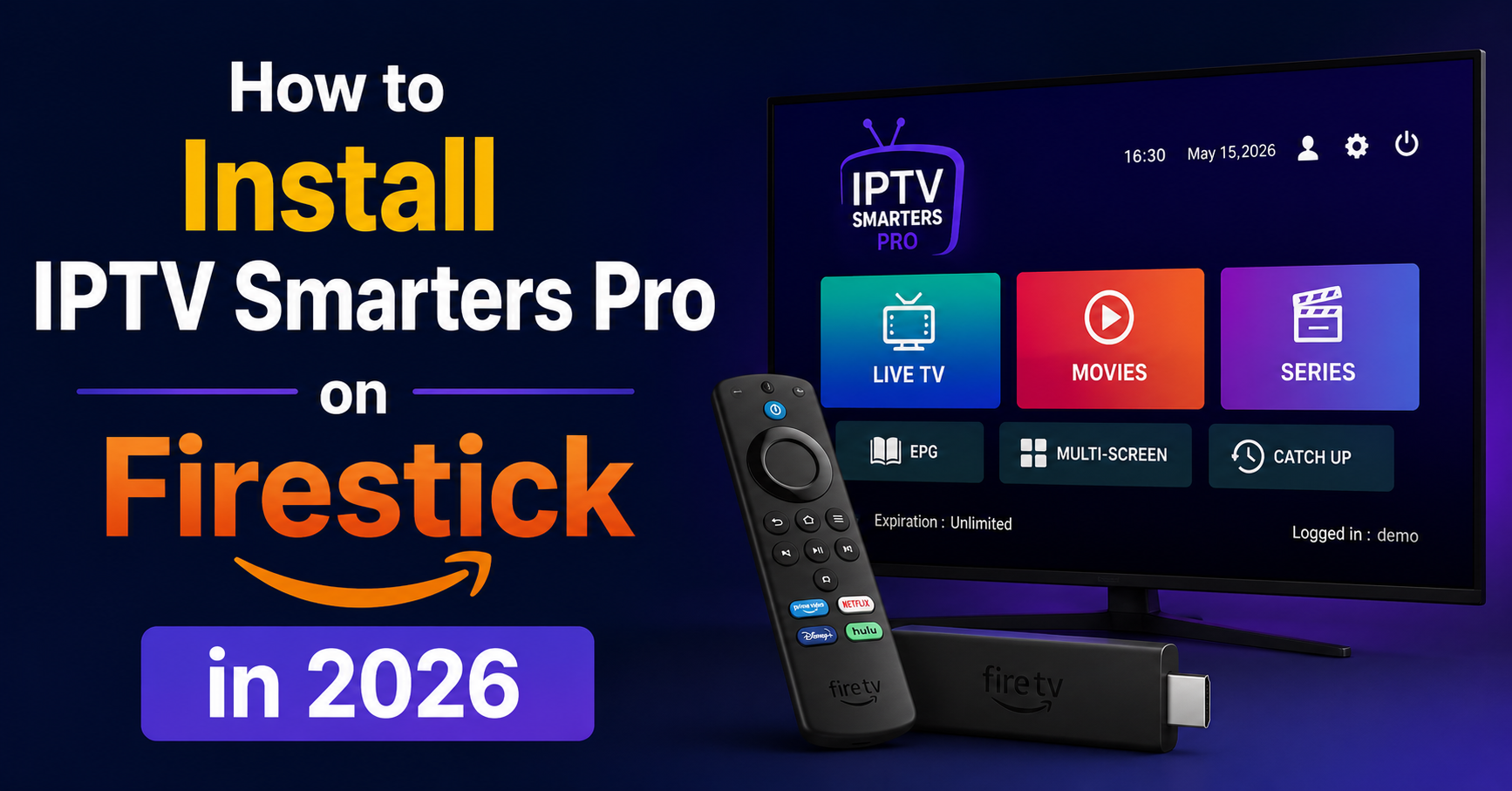
That’s it. You’ve managed to install IPTV Smarters Pro on Firestick in under five minutes — assuming the preparation steps were handled first.
Logging In Without Losing Your Mind
The app is installed. The icon sits in your “Your Apps & Channels” row. You open it. And now the login screen stares back at you with three fields and zero guidance.
IPTV Smarters Pro supports multiple login methods, but for reseller-issued subscriptions, the Xtream Codes API method is almost always the correct one.
You need three things from your provider or panel:
- Server URL (usually formatted as http://domain.com:port)
- Username
- Password
Enter these exactly as provided. A single typo — a trailing space, http instead of https, a missing port number — and the login fails with a generic error.
| Login Issue | Likely Cause | Fix |
|---|---|---|
| “Server not found” | Wrong URL or port | Double-check the server address including the port number |
| “Authentication failed” | Typo in username/password | Re-copy credentials from the panel; avoid manual typing |
| “No channels loading” | DNS resolution failure | Switch Firestick DNS to 8.8.8.8 or 1.1.1.1 |
| Login works but blank EPG | EPG URL not configured | Ask provider for the EPG source URL and enter it in app settings |
For resellers: the number one reason subscribers report “the app doesn’t work” after they install IPTV Smarters Pro on Firestick is a credentials entry error. Build a simple onboarding PDF with screenshots. It will halve your support load overnight.
DNS Configuration Most Guides Skip Entirely
Here is something that separates a working IPTV setup from a constantly buffering one, and it has nothing to do with the app itself.
ISPs across the UK and Europe have accelerated DNS-level blocking through 2025 and into 2026. The mechanism is straightforward: your ISP’s default DNS servers refuse to resolve certain domains associated with IPTV servers. The result? You install IPTV Smarters Pro on Firestick, enter valid credentials, and get either a connection timeout or channels that load intermittently.
Changing DNS at the Firestick level fixes this for most subscribers.
How to change DNS on Firestick:
- Go to Settings → Network
- Select your Wi-Fi network and long-press
- Choose “Forget Network,” then reconnect
- During reconnection, select “Advanced”
- Change IP configuration from DHCP to Static
- Enter your router’s gateway as the IP, and set DNS 1 to 8.8.8.8, DNS 2 to 1.0.0.1
Pro Tip: Some ISPs have moved beyond basic DNS poisoning to deep packet inspection. If DNS changes alone don’t resolve connectivity after you install IPTV Smarters Pro on Firestick, a lightweight VPN configured at router level is the next step.
This single adjustment resolves roughly 40% of “buffering” and “channels won’t load” complaints that resellers deal with daily. Yet almost no setup guide mentions it.
EPG Setup: The Detail That Separates Amateur Resellers from Professionals
A working channel list is the minimum. What subscribers actually judge you on is the programme guide. When someone presses the guide button and sees empty grids or “No Information Available” across every channel, their perception of your service drops immediately — regardless of stream quality.
After you install IPTV Smarters Pro on Firestick and log in, the EPG does not auto-populate on most setups. You need to manually trigger an update.
Go to Settings within the app → EPG → enter the EPG URL provided by your panel. Then force a refresh. On slower connections, this initial EPG load can take three to five minutes, which panics subscribers who think it’s frozen. Warn them in advance.
For resellers managing hundreds of subscribers, here’s the operational angle: EPG sources go stale. Providers update their XML feeds periodically, and if your panel’s EPG URL changes, every single subscriber’s guide breaks simultaneously. Monitor your panel’s announcements. Better yet, check the EPG feed URL weekly.
- A broken EPG doesn’t mean broken channels — but subscribers don’t know that
- HLS latency in the EPG data itself can cause timing mismatches where the guide shows the wrong programme
- Some budget panels use shared EPG sources that are chronically 24 hours behind
Firestick Performance Tuning After Installation
People rarely talk about what happens after you install IPTV Smarters Pro on Firestick. The device sits in a subscriber’s living room, accumulating background processes, auto-updates, and Amazon’s own telemetry. Over weeks, performance degrades. The app takes longer to open. Channel switching slows down. Buffering starts creeping in on streams that worked perfectly a month ago.
A handful of adjustments extend the usable life of any Firestick running IPTV Smarters Pro considerably.
- Turn off automatic updates for pre-installed apps. Amazon will update its own apps in the background, consuming bandwidth and processing power at unpredictable times.
- Disable Data Monitoring. Settings → Preferences → Privacy Settings → Device Usage Data → Off. This reduces background network activity.
- Force stop unused apps. Firestick keeps apps lingering in memory. Periodically go through Settings → Applications → Manage Installed Applications and force stop anything not actively in use.
Pro Tip: If a subscriber reports sudden buffering after weeks of stable performance, the first question should be “Has your Firestick updated recently?” Fire OS updates regularly reset optimisation settings and re-enable background services you previously disabled.
What to Do When IPTV Smarters Pro Crashes on Firestick
It happens. The app force closes mid-stream, or it hangs on the splash screen and never loads the channel list. Before you assume the panel is down or the server is overloaded, run through the Firestick-specific fixes.
Clear the app cache: Settings → Applications → Manage Installed Applications → IPTV Smarters Pro → Clear Cache. This resolves the majority of crash-on-launch issues.
Clear app data (nuclear option): Same path, but select Clear Data instead. This wipes your login credentials and EPG settings, so you’ll need to re-enter everything. But it resets the app to a fresh state.
Reinstall the app: If clearing data doesn’t work, uninstall IPTV Smarters Pro completely and install IPTV Smarters Pro on Firestick again from scratch using the Downloader method outlined earlier. Corrupted APK installs happen more often than people admit, especially when the original download occurred over an unstable connection.
| Symptom | First Response | Escalation |
|---|---|---|
| Crash on launch | Clear cache | Clear data, then reinstall |
| Freeze during channel switch | Restart Firestick | Check server load with provider |
| Black screen with audio | Change player within app settings (switch between hardware/software decoder) | Test same credentials on a different device |
| App won’t install at all | Confirm Downloader has install permissions | Free up storage and retry |
For resellers, track which Firestick model your subscribers use. The Firestick Lite is the weakest hardware in the lineup and struggles with high-bitrate streams that the 4K Max handles effortlessly. Knowing the hardware before troubleshooting saves everyone time.
Alternatives When IPTV Smarters Pro Isn’t the Right Fit
Not every subscriber needs Smarters Pro. Not every panel supports it optimally. And sometimes, despite doing everything correctly to install IPTV Smarters Pro on Firestick, the app’s interface simply doesn’t suit a particular user — especially older subscribers who find the grid layout confusing.
Other players worth having in your reseller toolkit:
- TiviMate: Premium feel, better EPG navigation, but requires a paid licence for full features. Excellent for power users who want catch-up and multi-screen views.
- XCIPTV: Lightweight alternative, handles M3U and Xtream Codes logins. Less polished but faster on low-end hardware.
- OTT Navigator: Highly customisable. Appeals to technically confident users who want granular control over stream settings.
The strategic play for resellers isn’t to push one app exclusively. It’s to install IPTV Smarters Pro on Firestick as the default recommendation — because it’s free, well-known, and most panels support it natively — while keeping alternatives ready for edge cases.
Load Balancing and the Server Side Nobody Sees
Here is the part of the equation that subscribers never think about but resellers live and die by. You can install IPTV Smarters Pro on Firestick flawlessly on five hundred devices, and if your upstream server infrastructure can’t handle the concurrent connections during a premium sports event, every single one of those installations buffers simultaneously.
Quality IPTV infrastructure in 2026 relies on:
- Multiple uplink servers distributed across geographic regions, so a single server failure doesn’t take down the entire network
- HLS-optimised delivery that adapts bitrate based on the subscriber’s connection quality in real time
- Load balancing that distributes subscriber connections across available servers rather than funnelling everyone to one node
Budget panels that offer rock-bottom credit pricing almost always cut corners on server diversity. One server goes down, and your entire subscriber base is offline. The cost savings on credits evaporate the moment you start issuing refunds and losing customers.
Pro Tip: Ask your panel provider how many uplink servers they maintain and where they’re located. If they can’t answer that question clearly, your subscribers will experience the answer during the next major live event.
Frequently Asked Questions
Is IPTV Smarters Pro still free to install on Firestick in 2026?
Yes. IPTV Smarters Pro remains free to download and install on Firestick via sideloading through the Downloader app. There is no subscription fee for the app itself. However, you need active IPTV service credentials from a provider to actually use it. The app is the player; it doesn’t include any channels or content on its own.
Can I install IPTV Smarters Pro on Firestick without the Downloader app?
Technically, yes. You can use alternative sideloading tools like ES File Explorer or send the APK via cloud storage apps. However, Downloader remains the most reliable and widely tested method on Fire OS in 2026. Other methods introduce additional steps and potential compatibility issues that make them impractical for most users.
Why does IPTV Smarters Pro say “server not found” after I install it on Firestick?
This almost always points to a DNS resolution issue. Your ISP’s default DNS may be blocking the IPTV server domain. Switch your Firestick DNS settings to a public DNS like 8.8.8.8 or 1.1.1.1. If that doesn’t resolve it, verify the server URL, port number, and credentials with your IPTV provider — a single character error causes this.
How often should I update IPTV Smarters Pro on Firestick?
Check monthly. The app doesn’t auto-update since it’s sideloaded, so you need to manually download the latest APK through Downloader when a new version releases. Running outdated versions can cause login failures, missing features, and compatibility problems with newer panel software.
Will a VPN slow down IPTV Smarters Pro on Firestick?
It depends on the VPN provider and server location. Premium VPN services typically add 5–15% overhead on connection speed. Budget or free VPNs can reduce speeds dramatically, causing constant buffering. If you need a VPN to bypass ISP restrictions, choose one with servers geographically close to your IPTV provider’s infrastructure.
Can I install IPTV Smarters Pro on multiple Firestick devices with the same credentials?
That depends entirely on your IPTV subscription plan. Most providers allow one to two simultaneous connections per subscription. Attempting to exceed your connection limit will result in one device being kicked off when another logs in. Check your plan details or ask your reseller about multi-device options.
What Firestick model works best with IPTV Smarters Pro?
The Firestick 4K Max (2nd generation) offers the best performance for IPTV Smarters Pro due to its faster processor and improved Wi-Fi 6E connectivity. The Firestick Lite works but struggles with high-bitrate streams and can lag during EPG loading. For subscribers who watch premium sports streams, always recommend the 4K Max.
Does installing IPTV Smarters Pro on Firestick void the warranty?
No. Sideloading apps through legitimate methods like the Downloader app does not void your Amazon device warranty. You are simply installing an application from outside the Amazon App Store, which Amazon explicitly allows through the Developer Options toggle. The device hardware warranty remains intact.
Your Post-Installation Success Checklist
This is execution, not theory. Run through every item after you install IPTV Smarters Pro on Firestick — whether it’s your own device or a subscriber’s.
- Confirm Fire OS is fully updated before beginning the installation process — outdated firmware is the silent killer of clean installs.
- Verify Downloader has explicit install permissions under Developer Options, not just the general unknown sources toggle.
- Change DNS to 8.8.8.8 / 1.1.1.1 on the Firestick network settings to pre-empt ISP-level DNS blocking before it becomes a support ticket.
- Test login credentials on a secondary device first (phone or PC) to confirm they’re valid before entering them on the Firestick.
- Force an EPG refresh immediately after first login and wait for it to complete — a populated guide is what makes your service feel professional.
- Disable Firestick background services (Data Monitoring, automatic app updates) to preserve bandwidth and processing power for streaming.
- Document the APK download URL and bookmark it inside Downloader for future updates — subscribers who can self-update generate fewer support requests.
- Keep at least one alternative player APK ready (TiviMate or XCIPTV) for subscribers whose hardware or preferences don’t align with Smarters Pro.
- Monitor your panel provider’s server status and EPG feed URL weekly — upstream changes break downstream experiences without warning.
- Build a subscriber onboarding guide with screenshots covering installation, login, and DNS setup — visit britishseller.co.uk for further IPTV UK reseller resources and panel options that pair well with a properly configured Firestick setup.
Every step here exists because someone, somewhere, skipped it and paid for it in lost subscribers and wasted evenings. Don’t be that reseller.