If your channels freeze, buffer, or refuse to load at certain times of day, the usual cause is a DNS-level block or ISP throttling rather than a fault with the app itself. To Fix IPTV DNS Blocks & ISP Throttling, start by changing the DNS servers on your router or device to a public resolver, confirming whether the block is DNS-based or a wider network restriction, and checking with your provider whether their server addresses have changed. Most cases clear up once the correct DNS path is restored, though some throttling issues need a slightly different approach, which this guide covers in order of likelihood.
What DNS Blocking Actually Looks Like on IPTV
DNS blocking rarely announces itself. Instead of a clear error message, you get channels that spin endlessly, an app that says “no connection” while your broadband is clearly working, or a service that loads fine on 4G but not on home Wi-Fi. That pattern, working on mobile data but failing on a home network, is one of the strongest signs that your ISP or router is blocking the domain name lookup rather than the connection itself.
DNS is simply the system that translates a server’s domain name into the numerical address your device needs to actually connect. When an ISP blocks a domain at the DNS level, your device asks “where is this server?” and gets no useful answer back, or gets redirected to a blank page. The app doesn’t know the server is unreachable, it just knows the request went nowhere, so it sits there loading.
This is different from a server going down. If the provider’s infrastructure itself has an outage, changing your DNS settings won’t help, and you’d typically see the same failure across every device and network you try. DNS blocking, by contrast, is usually specific to one ISP or one household network.
How ISP Throttling Is Different From a DNS Block
Throttling is a separate issue and it’s worth telling the two apart before you start changing settings. A DNS block stops your device finding the server at all. Throttling lets the connection through but deliberately slows specific types of traffic, often streaming traffic identified through deep packet inspection during busy evening hours.
The practical difference shows up in the symptoms. A DNS block tends to be constant, the same failure whether it’s 9am or 9pm. Throttling is usually time-dependent, fine in the afternoon, struggling between 6pm and 11pm when household broadband demand peaks generally across the network.
| Symptom | More likely DNS block | More likely throttling |
|---|---|---|
| Timing | Same failure any time of day | Worse in peak evening hours |
| Mobile data test | Works fine on 4G/5G | Also slow on mobile, less common |
| Error type | No connection, endless loading | Stream loads but buffers repeatedly |
Pro tip: Test the same stream on your home Wi-Fi and on your phone’s mobile data back to back. If it behaves completely differently, you’ve already narrowed the cause down significantly before touching any settings.
Step-by-Step: Fix IPTV DNS Blocks & ISP Throttling on Your Router or Device
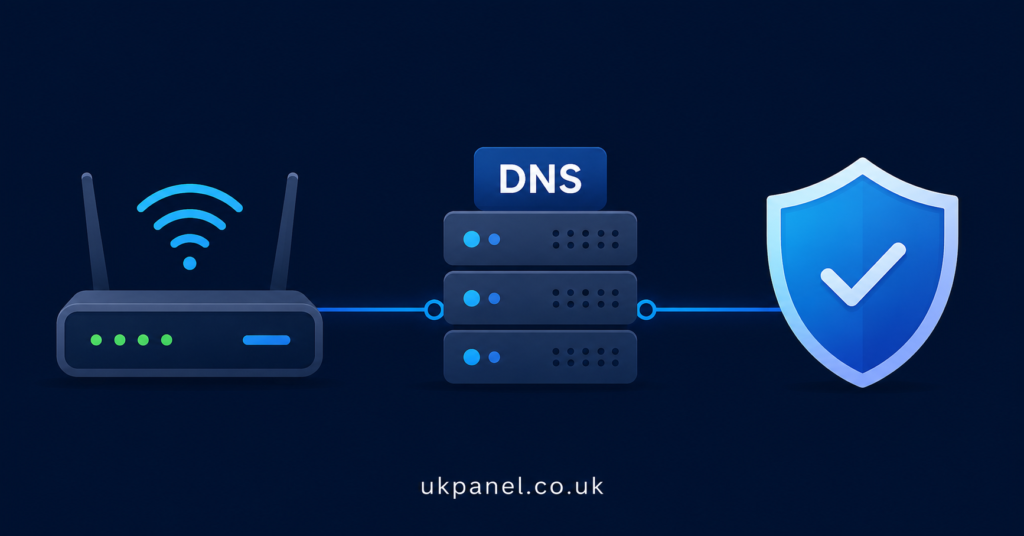
The most direct way to Fix IPTV DNS Blocks & ISP Throttling is to change which DNS resolver your device or router uses, since the default one supplied by your ISP is often the one applying the restriction.
- Open your router’s admin panel, usually accessible through a browser address like 192.168.1.1, and log in with your admin credentials.
- Find the DNS or WAN settings section, which varies by router brand but is typically under network or internet settings.
- Replace the automatic DNS entries with a public resolver such as 1.1.1.1 or 8.8.8.8, entering both a primary and secondary address.
- Save the settings and reboot the router so every connected device picks up the new DNS path.
- If changing it on the router isn’t possible, set the DNS manually on the individual streaming device instead, most Android TV boxes and Firestick devices allow this under network settings.
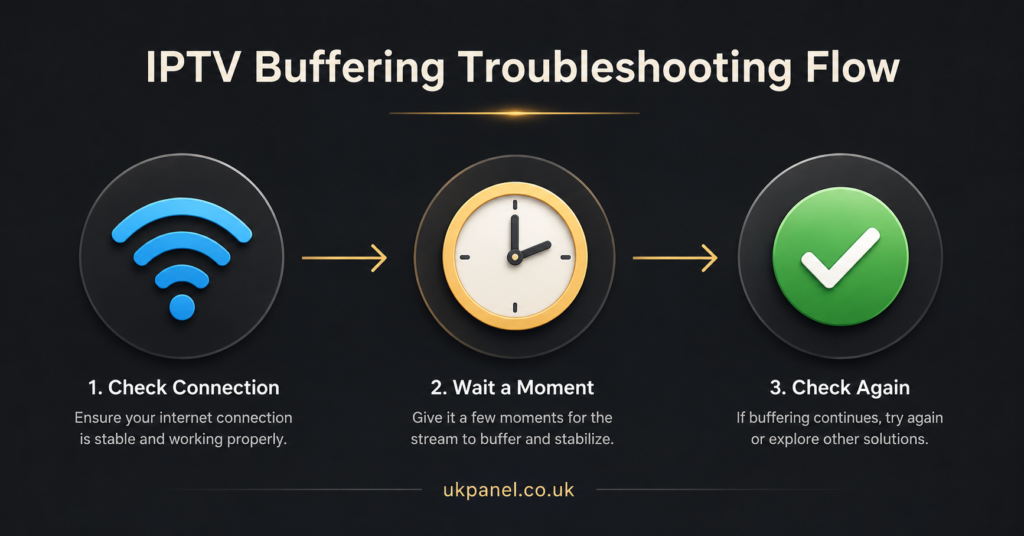
- Reopen your IPTV app and test a channel that previously failed, giving it a minute or two since the first lookup after a DNS change can be slightly slower.
If the change makes no difference at all, the restriction may not be DNS-based, and you’re more likely looking at throttling or a genuine server-side issue with the provider.
Router and Network Checks Before Blaming the Provider
Before assuming the provider is at fault, it’s worth ruling out issues on your own network. A crowded 2.4GHz Wi-Fi band, an outdated router firmware version, or a VPN that’s routing traffic inefficiently can all produce symptoms that look identical to a DNS block.
Check whether the router firmware is current, since some ISPs push firmware updates that quietly reintroduce content filtering defaults. If you’re using a VPN alongside your IPTV app, try disabling it briefly, some VPN configurations interfere with DNS resolution in ways that mimic a block. Also confirm that no parental control or family safety feature has been switched on within the router settings, since these often work by filtering DNS requests and can catch IPTV traffic without meaning to.
When the Issue Sits With the Provider Rather Than Your Network
Not every buffering problem traces back to your home setup. If several channels fail specifically through one provider’s servers while everything else online works normally, and changing DNS on your own end makes no difference, the block or congestion may be happening upstream, on the provider’s own infrastructure or the domain they’re using.
Providers sometimes rotate server domains for operational reasons, and if you’re still pointed at an old address, no DNS change on your side will fix that. This is where checking directly with your provider, for example through ukpanel.co.uk’s contact page, is more useful than continuing to adjust router settings. A provider such as britishseller.co.uk, like any other, should be able to confirm current server addresses and whether other customers are reporting the same issue.
| Where the problem sits | Typical sign | What actually helps |
|---|---|---|
| Your home network | Fails on all services, all providers | Router reboot, firmware update, DNS change |
| Your ISP | Fails on IPTV specifically, works on 4G | DNS change, contacting ISP if pattern continues |
| Provider server | Fails for many customers on one provider | Contact provider, check for a status update |
Pro tip: Keep a note of the exact time and channel when a failure happens. If you contact support, that detail lets them check their own logs instead of guessing, which speeds up any genuine fix considerably.
What This Means for IPTV Resellers
If you run an IPTV panel reseller business, DNS and throttling issues turn into a support workload fast, because every affected customer assumes the fault is yours specifically. Building a short standard response, ask whether it happens on mobile data too, ask what time it happens, suggest the DNS change, cuts resolution time and reduces repeat tickets substantially.
It also helps to document your own infrastructure clearly for customers. A reseller dashboard that shows current server status, and a basic setup page customers can be pointed to, reduces the number of tickets that turn out to be a five-minute DNS fix rather than a real service fault. For sub-resellers working under a parent panel, escalate DNS-pattern issues quickly rather than troubleshooting endlessly yourself, since the root cause may sit further up the chain than you can influence directly.
Common Mistakes That Make Troubleshooting Slower
A few habits routinely stretch out what should be a short fix. Restarting the app repeatedly without changing anything else rarely helps if the underlying cause is DNS-related, since the app itself isn’t broken. Switching provider entirely at the first sign of buffering is another common overreaction, particularly when the same symptom would likely follow to a new provider if the actual cause is your own network or ISP.
Assuming every buffering incident is throttling, without checking the timing pattern first, also wastes time, since a genuine DNS block behaves differently and needs a different fix. Working through the checks in order, network first, then DNS, then provider, avoids chasing the wrong cause.
A Note on Legality and Access
IPTV itself is simply a delivery technology, streaming television over an internet connection rather than through a satellite dish or cable box. Whether a specific service is operating legitimately depends on whether the provider holds proper rights and distribution permission for the content it supplies, not on how professional its website looks or how it takes payment. Before committing to any provider, it’s reasonable to check their business registration, terms of service, refund policy, and how clearly they describe what you’re buying. This guide focuses on legitimate connectivity troubleshooting rather than any method of bypassing content restrictions, since that sits outside what a responsible provider or IPTV Panel reseller should be advising customers to do.
Frequently Asked Questions
Does changing my router’s DNS settings fix all IPTV buffering issues?
No. It resolves DNS-specific blocks but won’t help if the cause is ISP throttling, a provider server issue, or general network congestion.
Why does IPTV work on mobile data but not on home Wi-Fi?
This usually points to a restriction applied at the home network or ISP level, such as a DNS block, rather than a fault with the app or provider.
Is 1.1.1.1 or 8.8.8.8 better for IPTV streaming?
Both are reliable public DNS resolvers. Neither guarantees a fix on its own, but either is a reasonable first step to test whether DNS is the cause.
Should I contact my ISP directly about throttling?
If the pattern is consistently worse during peak evening hours across multiple services, it’s worth raising with your ISP, though they may not confirm throttling policies directly.
Can a VPN help with IPTV DNS blocks?
A VPN can sometimes bypass a DNS-level restriction, but it can also introduce its own connection issues, so it’s worth testing with and without one rather than assuming it will help.
How do I know if the problem is on the provider’s side?
If several channels fail specifically through one provider while everything else works normally, and DNS changes make no difference, contacting the provider directly is the next step.
Conclusion
Most cases where IPTV streaming stalls or refuses to load trace back to a DNS restriction or ISP throttling rather than a broken app or a failing subscription. Working through the checks in order, home network first, then DNS settings, then a direct conversation with your provider, is the most reliable way to Fix IPTV DNS Blocks & ISP Throttling without guessing at the cause. Not every fix will be instant, and some throttling patterns need a longer conversation with your ISP, but ruling out the simple causes first saves considerable time either way.
Quick Troubleshooting Checklist
- Test the same channel on home Wi-Fi and mobile data to compare behaviour
- Note the exact time of day the issue happens, and whether it repeats
- Change router or device DNS to a public resolver such as 1.1.1.1 or 8.8.8.8
- Reboot the router after changing DNS settings
- Temporarily disable any VPN to rule out interference
- Check router firmware is up to date and parental filters are off
- Contact your provider with specific details if the issue persists across changes