You’re Going to Get the Portal URL Wrong, Everyone Does
Here’s something no generic IPTV setup guide will open with: the number one reason new subscribers message support within sixty minutes of activation isn’t buffering, isn’t a dead channel, and isn’t a device problem. It’s a wrongly formatted portal URL.
It sounds minor. It isn’t. One missing “http://” prefix, one extra space copy-pasted from a WhatsApp message, one colon swapped for a semicolon, and the entire connection fails silently. No error code. No helpful pop-up. Just a blank screen and a confused customer reaching for the support button.
If you’re reading this IPTV setup guide as a subscriber setting up your first box, or as a reseller preparing to onboard your own customers, understand this upfront: setup failures are almost never about the service. They’re about small human errors in configuration, errors that are entirely preventable if you know where to look.
Pro Tip: Before sending portal credentials to any customer, paste the URL into a browser yourself. If it loads a player page or JSON response, the format is correct. If it throws a 404 or a blank page, you’ve got a formatting issue that’ll generate a support ticket within the hour.
This article isn’t a surface-level walkthrough. This is a field-tested IPTV setup guide built from years of handling real activations, real device failures, and real infrastructure headaches across Firestick, MAG, Smart TV, and mobile platforms.
What You Actually Need Before Touching Any Device
Most IPTV setup guide articles jump straight into app installation. That’s a mistake. If your foundation is wrong, every step after it compounds the problem.
Before you open a single app store or plug in a single Ethernet cable, confirm three things:
- Internet speed: Run a speed test on the device you plan to stream on, not your phone, not your laptop. You need a minimum of 25 Mbps for stable HD, 50+ Mbps for 4K. If you’re on Wi-Fi, test from the exact room the device sits in.
- DNS settings: Your ISP’s default DNS may throttle or redirect IPTV traffic. Switch to a neutral DNS provider (8.8.8.8 or 1.1.1.1) at router level before you begin.
- Credentials format: You’ll receive either an M3U URL, Xtream Codes API login (server + username + password), or a MAC-based portal URL. Know which format your app or device requires before you start entering anything.
Getting these three right eliminates roughly 70% of first-time setup failures. That’s not a guess, that’s based on handling thousands of activations where the fault sat squarely in preparation, not in the service itself.
Pro Tip: If you’re a reseller onboarding customers, send a short “before you start” checklist alongside login credentials. It halves your support ticket volume overnight.
Setting Up IPTV on an Amazon Firestick: The Easiest Entry Point
There’s a reason Firestick dominates the IPTV setup guide landscape: it’s cheap, widely available, and the setup process is genuinely straightforward. If you’re new to IPTV, start here.
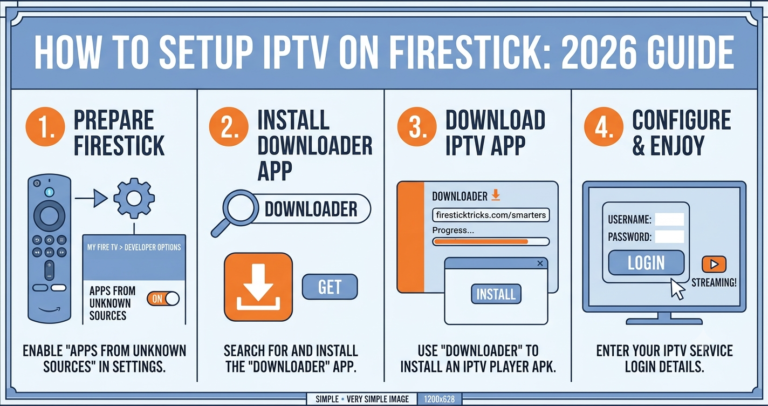
Step-by-step Firestick setup:
- Go to Settings → My Fire TV → Developer Options and enable “Install Unknown Apps” for the Downloader app.
- Install the Downloader app from the Amazon App Store.
- Open Downloader and type the direct URL for your chosen IPTV player (most panels recommend IPTV Smarters Pro, TiviMate, or a white-label APK).
- Once the player app installs, open it and choose your login method, Xtream Codes API is the cleanest option for most UK IPTV reseller panels.
- Enter your server URL, username, and password exactly as provided. No trailing spaces. No modified prefixes.
- Hit Connect. If your credentials and DNS are clean, channels should populate within 15 to 30 seconds.
That’s it. The Firestick IPTV setup guide process rarely fails if the credentials are formatted correctly and the internet connection is stable. Where people trip up is copying credentials from messaging apps that auto-format URLs or add invisible characters.
Here’s a quick reference for the most common Firestick setup errors:
| Common Firestick setup error | Cause | Fix |
|---|---|---|
| “Connection failed” on login | Incorrect server URL format | Re-copy URL directly from provider email, not WhatsApp |
| App won’t install via Downloader | Developer options not enabled | Re-check Settings → My Fire TV → Developer Options |
| Channels load but won’t play | DNS blocked by ISP | Switch DNS at router level to 8.8.8.8 |
| EPG (TV guide) missing | EPG URL not entered | Ask provider for separate EPG link, add in app settings |
MAG Box Configuration: The Part Most Guides Skip
Let’s be honest: MAG devices are not beginner-friendly. The interface is clunky, the menu system feels like it was designed in 2009 (because it was), and the portal URL entry method punishes even minor typos with zero feedback.
But MAG boxes are still widely used, particularly in UK households that prefer a traditional set-top-box experience. So this IPTV setup guide wouldn’t be complete without covering them properly.
MAG setup process:
- Connect the MAG box to your TV via HDMI and to your router via Ethernet (Wi-Fi adapters exist but introduce instability).
- On the main screen, go to Settings → System Settings → Servers → Portals.
- In Portal 1 Name, type anything identifiable (e.g., “My IPTV”).
- In Portal 1 URL, enter the full portal address provided by your reseller. This must include the http:// or https:// prefix and the correct port number.
- Save. Go back to System Settings → Restart Portal.
If the URL is correct, the portal loads and channels appear. If it’s wrong, you get a black screen or an endless loading loop, and MAG gives you absolutely nothing to diagnose the problem.
Pro Tip: On MAG devices, always use the device’s built-in web browser to test the portal URL before entering it in the portal settings. If the URL loads content in the browser, your formatting is correct. This one step saves hours of blind troubleshooting.
The MAC address on your MAG box (printed on the sticker underneath, starting with 00:1A:79) must be registered with your provider before the portal will authenticate. If you’ve entered everything correctly and still get a blank screen, your MAC hasn’t been whitelisted, contact your reseller.
Smart TV Setup: Samsung, LG, and the App Availability Problem
Smart TV IPTV setup guide instructions vary wildly depending on the brand, the operating system, and which app store your TV has access to. This is where things get fragmented.
Samsung (Tizen OS): Most IPTV apps aren’t available in the official Samsung app store. You’ll need to sideload using the TV’s IP address and a developer account, or use a dedicated Smart IPTV app (if still available in your region). Alternatively, plug a Firestick into the TV’s HDMI port and bypass the Samsung OS entirely.
LG (webOS): Similar story. The SS IPTV app was once the go-to option for LG but availability has been inconsistent since 2024. Again, an external device like a Firestick or Android box is often the path of least resistance.
Android TVs (Sony, TCL, Xiaomi, etc.): These are the exception. Because they run Android, you can install IPTV Smarters, TiviMate, or any APK directly from the Google Play Store or via sideloading. The IPTV setup guide process on Android TVs mirrors the Firestick method almost exactly.
The honest take? If your TV isn’t running Android, don’t fight the operating system. A £30 Firestick plugged into the HDMI port gives you a smoother, more reliable IPTV setup guide experience than trying to sideload apps onto a restricted Samsung or LG platform.
DNS Configuration: The Invisible Layer Most People Ignore
This section of the IPTV setup guide matters more in 2026 than it ever has. ISP-level interference with IPTV traffic has escalated significantly, and DNS is the primary mechanism they use.
Here’s what’s actually happening: your ISP’s default DNS resolver can identify IPTV-related domain requests and either block them, redirect them, or throttle the response. You won’t see an error message. Your app will simply fail to connect, or streams will buffer endlessly despite having strong internet speeds.
How to change DNS at router level:
- Log into your router’s admin panel (usually 192.168.0.1 or 192.168.1.1)
- Navigate to WAN settings or Internet settings
- Replace the primary DNS with 8.8.8.8 and the secondary with 8.8.4.4
- Save and reboot the router
Changing DNS at router level applies the fix to every device on your network, no need to configure each device individually. This is the single most effective step in any IPTV setup guide that most articles either skip entirely or bury at the bottom.
Pro Tip: If you’re a reseller, include DNS change instructions as step one in your customer onboarding, not as a troubleshooting step after things break. Proactive DNS configuration reduces “I can’t connect” tickets by a significant margin.
For resellers managing their own infrastructure, DNS poisoning is also a factor on the server side. Ensure your panel’s upstream servers use hardened DNS that can’t be easily redirected. This is an infrastructure decision, not a customer-facing one, but it directly affects whether your customers’ IPTV setup guide experience ends in success or a support ticket.
What to Do When an App Update Breaks Everything
This is a reality that almost no IPTV setup guide covers, and it’s one of the most disorienting experiences for both subscribers and UK IPTV resellers: an app update silently breaks the connection.
It’s happened across the board, IPTV Smarters, TiviMate, and various white-label players have all pushed updates that changed API handling, altered how login credentials are parsed, or broke compatibility with certain panel versions. One day everything works. The next morning, after an overnight auto-update, nothing loads.
If you’re a subscriber and your setup stopped working after an app update:
- Don’t re-enter your credentials yet, the update may have wiped your saved profiles
- Check whether the app has a “restore” or “backup” function that lets you reload previous settings
- If not, uninstall the updated version and sideload the previous APK version (search for the version number your provider originally recommended)
- Disable auto-updates for the IPTV app to prevent this from recurring
If you’re a reseller and multiple customers report connection failures simultaneously:
- Check your panel’s API endpoint, is it still responding?
- Test with a fresh installation of the app on your own device
- If the app update is confirmed as the cause, issue an immediate communication to your subscriber base with the previous APK download link and instructions to disable auto-update
This isn’t a hypothetical scenario. This is a real operational event that has affected reseller businesses overnight. Your IPTV setup guide process should include disabling auto-updates as a final step, not as an afterthought.
Here’s how to triage the most common failure scenarios:
| Scenario | Likely cause | Reseller action |
|---|---|---|
| All customers lose connection overnight | App auto-update broke API handling | Distribute previous APK version, issue rollback guide |
| Only some customers affected | Device-specific update (e.g., Firestick OS update) | Test on same device model, provide device-specific fix |
| Panel API works but app won’t authenticate | App changed credential parsing format | Contact app developer or switch to alternative player |
The Backend Setup Your Customers Never See
If you’re reading this IPTV setup guide as a reseller rather than an end subscriber, this section is where the operational knowledge lives.
Setting up your reseller panel correctly is the difference between a business that scales and one that drowns in support tickets. The customer-facing setup, Firestick, MAG, Smart TV, is the easy part. The backend is where resellers either build something sustainable or create a fragile operation that collapses under load.
Panel and credit management: Your upstream provider allocates credits that you distribute as subscriptions. Understand your credit burn rate, your margin per subscription, and your renewal cycle. If you’re not tracking these numbers weekly, you’re operating blind.
Server load awareness: Ask your provider how many concurrent connections their infrastructure supports per server node. If your subscriber base grows beyond the allocated capacity, streams degrade before you even notice. Buffering complaints aren’t always about the customer’s internet, sometimes it’s your provider’s infrastructure hitting its ceiling.
Pro Tip: Request access to a secondary uplink server or backup panel URL from your provider. When the primary goes down, and it will, having a failover option means you can redirect customers in minutes rather than losing a full evening of service. This is the single most overlooked element in any reseller-focused IPTV setup guide.
Customer communication templates: Pre-write setup guides for each device type. Don’t make customers wait for a manual response to a setup question that’s been asked a hundred times. A WhatsApp auto-responder or a pinned PDF setup guide cuts first-hour support load dramatically.
EPG, Channel Sorting, and the Details That Separate Professionals from Amateurs
Once the basic IPTV setup guide steps are complete and channels are streaming, most people stop. Resellers who want to reduce churn don’t.
EPG (Electronic Programme Guide): A working EPG transforms the experience from “flicking through numbered channels” to something that feels like a proper TV service. Most IPTV players allow you to load an external EPG URL, your provider should supply this. If the EPG isn’t loading, the XML source may be outdated or the URL format may need adjusting (some apps require the full path including the file extension).
Channel sorting and favourites: Teach your customers how to create favourite lists and hide channel categories they don’t use. A subscriber who sees 15,000 channels and can’t find what they want will churn faster than one who has a clean, curated list of 200 channels they actually watch.
Playback settings: Most IPTV players default to hardware decoding. If a customer reports audio sync issues or intermittent freezing on specific channels, switching to software decoding in the app settings often resolves it. This is a micro-detail that rarely appears in a standard IPTV setup guide but solves a disproportionate number of support queries.
Pro Tip: If you’re a reseller, send a follow-up message 48 hours after activation asking if the EPG is working and if the customer has set up their favourites. This tiny touchpoint reduces early-stage churn and positions you as a provider who actually cares about the viewing experience, not just the sale.
Frequently Asked Questions
What devices work best for following an IPTV setup guide?
Amazon Firestick is the most straightforward device for any IPTV setup guide. It supports sideloading, handles Xtream Codes API natively through most player apps, and requires no advanced technical knowledge. Android TVs are a close second. MAG boxes work but demand more precise configuration. Avoid Samsung and LG Smart TVs unless you’re comfortable with sideloading restrictions.
Why does my IPTV keep buffering even after completing the setup correctly?
Buffering post-setup is usually a network issue, not a service fault. Test your speed directly on the streaming device, not your phone. If speed is fine, your ISP may be throttling IPTV traffic via DNS. Switch to 8.8.8.8 at router level. If buffering persists during peak hours only, the issue likely sits with your provider’s server load capacity.
Can I use the same IPTV subscription on multiple devices at once?
This depends on your subscription plan. Most reseller panels allow one to two simultaneous connections per account. If you need multi-room access, ask your reseller about multi-connection packages rather than sharing a single login, shared credentials across too many devices trigger automatic disconnections on most panels.
Is a VPN necessary when following an IPTV setup guide?
A VPN adds a layer of privacy and can bypass ISP-level DNS blocking, but it’s not always necessary. If your DNS is already configured to a neutral resolver and streams work without issues, a VPN may actually reduce speed due to encryption overhead. Use one if your ISP actively interferes with IPTV traffic, otherwise, proper DNS configuration achieves a similar result.
How do I know if my IPTV reseller panel is overloaded?
Signs include consistent buffering across multiple customers at the same time, slow channel loading, and EPG data failing to update. Check your panel’s connection count against the server’s rated capacity. If you’re consistently above 80% of maximum concurrent connections, it’s time to request additional server allocation or migrate heavy-traffic accounts to a secondary node.
What should I do if an IPTV app update breaks my setup?
Immediately uninstall the updated app and sideload the previous version using a trusted APK source. Disable auto-updates for the IPTV app on all devices. If you’re a reseller, communicate the issue to your subscriber base within the hour and provide a direct download link to the stable version. Delays in communication during app-update failures are the fastest way to lose subscriber trust.
How often should I update my IPTV setup guide instructions for customers?
Review your setup documentation every time your provider changes server URLs, every time a major app update is released, and at minimum once per quarter. Outdated setup instructions are the single largest driver of avoidable support tickets in reseller operations.
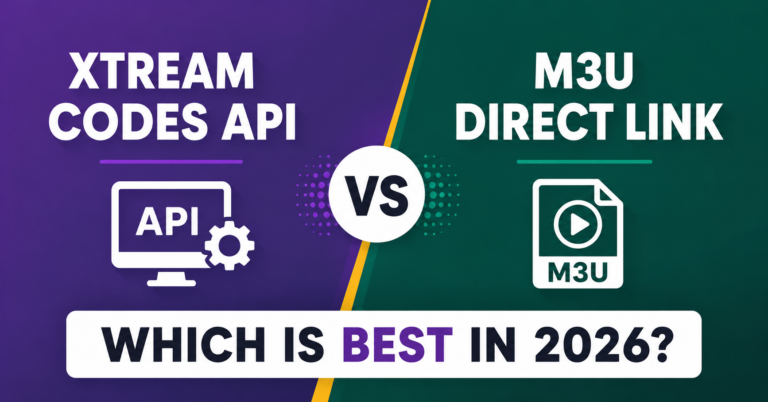
What’s the difference between M3U and Xtream Codes API in an IPTV setup guide?
M3U is a static playlist URL that loads channels directly, simple but limited in features. Xtream Codes API uses a server address plus username and password, enabling EPG support, catch-up TV, series categorisation, and account management through the panel. For reseller operations, Xtream Codes API is the standard because it gives both the reseller and subscriber more control over the experience.
Success Checklist: Your IPTV Setup Guide Execution Plan
- Change DNS to 8.8.8.8 at router level before activating any device. This single step prevents the majority of “can’t connect” issues across every device type.
- Test portal URLs and credentials yourself before sending them to customers. Paste every URL into a browser. Verify every username and password on a test device. Never send untested credentials.
- Standardise your Firestick setup process first. It’s the most forgiving device. Build your customer onboarding flow around Firestick, then create device-specific variations for MAG and Smart TV.
- Pre-write setup guides for every device you support. A PDF or WhatsApp-ready message for Firestick, MAG, Samsung, LG, and Android TV. Don’t type the same instructions manually for every customer.
- Disable auto-updates on every IPTV app installation. Teach your customers to do this at the end of every setup. One rogue update can break connections across your entire subscriber base overnight.
- Secure a backup server URL from your provider. When the primary goes down, you need a failover within minutes, not hours. If your provider can’t offer this, evaluate alternatives.
- Follow up with every new customer at 48 hours. Ask about EPG, favourites, and playback quality. Early engagement reduces churn and catches problems before they become cancellations.
- Track your credit burn rate and concurrent connection count weekly. These two numbers tell you whether your operation is healthy or heading toward overload.
- Review and update your setup documentation quarterly, or immediately after any provider server change or major app update.
- Visit britishseller.co.uk for IPTV reseller panel options and infrastructure guidance that aligns with the operational standards covered in this IPTV setup guide.