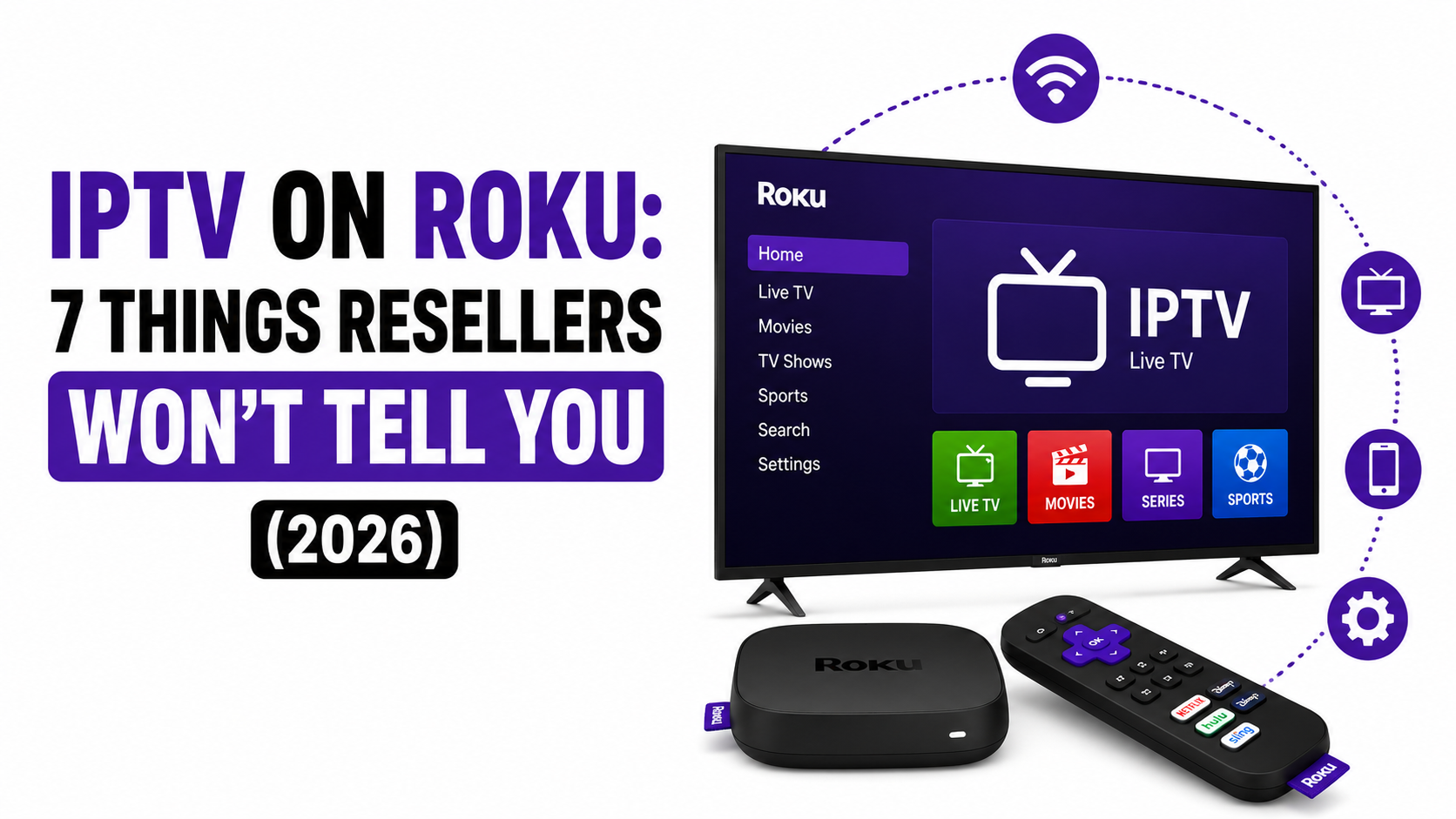
Every week, someone messages a IPTV reseller panel asking the same thing: can I use IPTV on Roku? The answer isn’t no. But it’s not the clean yes that most articles pretend it is either.
Roku has built its reputation on simplicity. Plug it in, connect to Wi-Fi, browse the channel store. Done. But that locked-down ecosystem is exactly what makes IPTV on Roku a headache. Unlike Android-based devices where you can sideload an APK in thirty seconds, Roku restricts third-party app installation by design. There’s no direct way to load a standalone IPTV player onto the device without jumping through hoops that most household users aren’t prepared for.
This article isn’t going to pretend Roku is the ideal IPTV device. It isn’t. What it will do is walk you through the real methods that work in 2026, the technical pitfalls that cause buffering and audio desync, and the honest alternatives that experienced operators actually recommend to their customers.
Pro Tip: If a customer already owns a Roku and doesn’t want to buy another device, screen mirroring is your fastest path. But manage expectations upfront, it’s a workaround, not a native solution.
Why Roku Locks Out IPTV Apps at the System Level
Understanding why IPTV on Roku doesn’t work like it does on a Firestick requires a quick look at how Roku handles applications. The Roku OS is a closed platform. Every app in the Roku Channel Store goes through a formal review and approval process. Third-party IPTV players, the kind IPTV resellers distribute to subscribers, don’t pass that review. They never will.
Sideloading exists on Roku in a limited “developer mode,” but it’s not the same as Android sideloading. Developer mode requires enabling a hidden menu, linking a Roku account, and manually packaging an app in Roku’s proprietary BrightScript format. Even then, sideloaded apps expire and require re-installation. For a household user who just wants to watch premium sports streams after work, this is a non-starter.
The result is that IPTV on Roku sits in a frustrating middle ground. The hardware is capable. The software won’t cooperate.
- Roku OS does not support APK files
- Developer mode sideloads are temporary and unstable
- No mainstream IPTV player app exists in the Roku Channel Store
- OTA updates can disable developer mode without warning
Why Screen Mirroring Is the Only Method That Actually Works
So how do resellers actually get IPTV on Roku working for their customers? Screen mirroring. It’s not elegant, but it’s functional. The concept is straightforward, you run the IPTV app on a phone, tablet, or laptop and cast the display to your Roku device over your local network.
Roku supports screen mirroring natively from both Android and Windows devices. Apple users need a Roku model that supports AirPlay 2, which covers most devices manufactured from 2019 onward. Once mirroring is active, whatever plays on your phone screen appears on the TV connected to Roku.
For resellers, this means the subscriber still needs a capable source device. You’re not eliminating hardware, you’re adding a step. That’s an important distinction when setting customer expectations.
Here’s how the three mirroring methods compare:
| Mirroring method | Source device | Roku compatibility | Latency risk |
|---|---|---|---|
| Android screen cast | Android 5.0+ | All Roku models | Medium |
| Windows Miracast | Windows 10/11 | All Roku models | Medium to high |
| AirPlay 2 | iPhone / iPad / Mac | Roku 2019+ models | Low to medium |
Pro Tip: Always tell your customer to connect both devices to the same 5GHz Wi-Fi band. Mixing 2.4GHz and 5GHz between the source device and Roku is the single biggest cause of lag during IPTV on Roku mirroring sessions.
Lag and Audio Sync: The Two Complaints You’ll Always Get
Here’s what no setup guide mentions: screen mirroring introduces latency. Always. It’s physics. Your source device encodes the screen, transmits it over Wi-Fi, and Roku decodes it on the other end. That round trip takes time, and IPTV on Roku via mirroring inherits every millisecond of that delay.
Lag shows up as a slight stutter during fast motion, sports content makes it obvious. Audio sync is worse. When the video stream and audio stream fall out of alignment by even 100 milliseconds, the viewing experience deteriorates fast. Customers notice lip-sync issues before they notice resolution drops.
There’s no permanent fix, but there are mitigation steps that actually help:
- Restart the Roku device and source phone before each mirroring session
- Close all background apps on the source device to free up encoding resources
- Use a 5GHz-only network to reduce wireless congestion
- Reduce the IPTV player’s output resolution to 720p, this halves the encoding workload
- If the router supports it, enable QoS prioritisation for the Roku device’s MAC address
Resellers who support IPTV on Roku customers should build a one-page troubleshooting PDF covering these exact steps. It cuts down repeat support tickets significantly.
The Honest Comparison: Roku vs Devices That Actually Support IPTV
This is where operator honesty matters more than SEO diplomacy. If a customer asks whether to buy a Roku specifically for IPTV, the answer from anyone who’s managed a UK IPTV reseller panel for more than six months is: get a Firestick instead.
That’s not anti-Roku bias. It’s infrastructure logic. The Amazon Firestick runs Android-based Fire OS. It supports direct APK sideloading. Every major IPTV player, Smarters, TiviMate, XCIPTV, installs in under a minute. No mirroring. No encoding lag. No audio sync issues. The IPTV app runs natively on the hardware, pulling the stream directly over HLS or MPEG-TS protocols.
Here’s how the two devices actually stack up:
| Feature | Roku | Amazon Firestick |
|---|---|---|
| Native IPTV app support | No | Yes (via sideload) |
| Screen mirroring required | Yes | No |
| APK installation | Not supported | Fully supported |
| Audio sync risk | High | Minimal |
| Reseller setup time | 15 to 25 min | 2 to 5 min |
| Customer support tickets | Frequent | Rare |
| Recommended for IPTV | Workaround only | Primary device |
IPTV on Roku works. But it works the way a spare tyre works, it gets you moving, it’s not meant for the motorway.
Pro Tip: If your customer already owns a Roku and a Firestick, always configure IPTV on the Firestick first. Use the Roku for standard streaming apps and keep the IPTV workload on hardware that handles it natively.
The Support Mistake Most Resellers Make With Roku Buyers
Most reseller panels don’t include device-specific onboarding. That’s a mistake when Roku customers enter the mix. IPTV on Roku isn’t a plug-and-play situation, and treating it like one leads to chargebacks, refund requests, and negative reviews that damage panel credibility.
The pattern is predictable. Customer buys credits. Customer tries to load the IPTV app onto Roku. Customer fails. Customer blames the service. The reseller loses a sale and gains a support headache, all because nobody told the buyer upfront that Roku requires mirroring.
Smart resellers handle this at the point of sale. A single line on the product page or checkout flow, “Roku requires screen mirroring; native app not supported,” eliminates ninety percent of these tickets. It’s not about discouraging the sale. It’s about managing expectations before money changes hands.
For resellers using panels with device-tag features, flagging Roku users separately allows you to send targeted setup guides. This is basic CRM segmentation applied to IPTV infrastructure, and it works.
DNS and ISP Blocking: How It Hits Roku Users Harder
In 2026, AI-driven ISP blocking has become more sophisticated. Major broadband providers now use deep packet inspection combined with DNS poisoning to identify and throttle IPTV traffic patterns. Every IPTV user faces this. But IPTV on Roku users face it worse.
Why? Because mirroring adds a second network transaction layer. The IPTV stream travels from the server to your source device, then gets re-encoded and transmitted locally to the Roku. If the ISP throttles the initial stream, the mirrored output degrades twice, once at the source, and again during the wireless cast. Firestick and Android box users only deal with the first layer.
Resellers advising Roku customers need to emphasise VPN usage on the source device. A VPN on the phone or laptop encrypts the initial IPTV stream before it ever reaches the mirroring layer. This doesn’t eliminate local Wi-Fi lag, but it prevents ISP-level throttling from compounding the problem.
- Configure the VPN on the source device, not the Roku
- Use a VPN provider with dedicated streaming-optimised servers
- Avoid free VPNs, they introduce additional latency and data caps
- Test with and without VPN to isolate whether the issue is ISP throttling or local network congestion
Pro Tip: If a Roku customer reports sudden quality drops at peak hours (7 to 10 PM), it’s almost certainly ISP throttling, not your panel’s server. A VPN test confirms this in under two minutes.
Load Balancing and Back-Up Uplinks: Why Your Panel Matters More Than the Device
Device choice gets all the attention. But the infrastructure behind the panel is what determines whether IPTV on Roku, or any device, actually delivers a watchable stream. A reseller running a single-origin server with no failover is going to generate complaints regardless of whether the customer uses Roku, Firestick, or a high-end Android box.
Load balancing distributes viewer connections across multiple servers. When one uplink saturates, traffic shifts to a backup node automatically. This is non-negotiable for any UK IPTV Panel reseller operating above fifty concurrent users. Without it, peak-time buffering becomes a nightly event, and your Roku customers, already dealing with mirroring overhead, will be the first to notice.
Back-up uplink servers matter equally. If your primary CDN node goes down, a secondary uplink keeps streams alive. Resellers who’ve been through a server outage during a major sporting event understand this viscerally. The panel credits don’t refund themselves when a thousand subscribers lose their stream simultaneously.
For resellers supporting IPTV on Roku customers specifically, infrastructure reliability isn’t optional, it’s the only variable you can control. You can’t fix Roku’s closed OS. You can’t eliminate mirroring latency. But you can ensure the stream arriving at the customer’s source device is clean, fast, and uninterrupted.
What Changes When Roku Customers Enter Your Subscriber Mix
Growth introduces complexity. A reseller with twenty subscribers can handle Roku support manually. A reseller with two hundred cannot. IPTV on Roku generates disproportionate support volume relative to the customer base size, and failing to account for this during scaling leads to operational drag.
The solution isn’t to refuse Roku customers. It’s to systematise their onboarding. Build a dedicated Roku setup guide, a single page covering mirroring steps, Wi-Fi band selection, and the VPN recommendation. Automate its delivery via email or WhatsApp the moment a customer indicates they’re using Roku. This front-loads the support interaction and reduces follow-up contacts.
Resellers who track device distribution across their subscriber base often find that Roku users represent less than ten percent of total connections but generate thirty percent or more of support tickets. Knowing this ratio lets you allocate support resources accurately and price your Roku-inclusive packages appropriately.
- Automate Roku-specific onboarding via email triggers
- Track device type per subscriber in your panel CRM
- Price Roku support as a value-add if ticket volume justifies it
- Consider creating a short video walkthrough, visual guides reduce text-based queries by half
Frequently Asked Questions
Can I install an IPTV app directly on Roku?
No. Roku’s closed operating system does not permit third-party APK installation. The Roku Channel Store reviews and approves all applications, and standalone IPTV players are not available through that process. The only functional method for running IPTV on Roku in 2026 is screen mirroring from a compatible Android, Windows, or Apple device.
Does screen mirroring affect IPTV stream quality on Roku?
Yes. Mirroring introduces an encoding and decoding step that adds latency. Video quality typically drops slightly compared to native playback, and fast-motion content like sports can exhibit stutter. Reducing the source device’s output to 720p and using a 5GHz Wi-Fi connection minimises the quality loss during IPTV on Roku sessions.
Why does audio go out of sync when mirroring IPTV to Roku?
Audio desynchronisation occurs because video and audio packets are processed at different speeds during the mirroring handshake. Even a 100-millisecond gap becomes noticeable. Restarting both devices, closing background applications, and ensuring a strong Wi-Fi signal are the most effective immediate fixes for audio sync problems.
Is a Firestick better than Roku for IPTV?
For IPTV specifically, a Firestick is significantly more practical. It supports direct APK sideloading, runs native IPTV player apps without mirroring, and eliminates the latency and audio sync issues inherent to Roku’s mirroring-only approach. Resellers consistently report fewer support tickets from Firestick users compared to Roku users.
Do I need a VPN to use IPTV on Roku?
A VPN is strongly recommended. It encrypts the IPTV stream on your source device before mirroring, preventing ISP-level throttling via deep packet inspection or DNS poisoning. Install the VPN on the phone or laptop performing the mirroring, Roku itself does not support native VPN applications.
Can resellers offer Roku-specific support without increasing costs?
Yes, by automating onboarding. A pre-built setup guide delivered via email or messaging app at the point of sale eliminates most first-contact support queries. Resellers who segment Roku users in their panel CRM and deliver targeted guides report a measurable reduction in repeat support tickets.
Will Roku ever support native IPTV apps?
There’s no indication from Roku’s platform roadmap that third-party IPTV players will be approved in the Channel Store. Roku’s review policy has remained consistently restrictive since its inception. Resellers should plan around mirroring as the long-term method for IPTV on Roku rather than waiting for policy changes.
What’s the minimum Wi-Fi speed needed for IPTV on Roku via mirroring?
A stable 25 Mbps connection on a 5GHz band is the practical minimum for smooth HD mirroring. The source device needs sufficient bandwidth to pull the IPTV stream and simultaneously encode the screen output. Below 25 Mbps, buffering and frame drops become frequent, especially during peak ISP congestion hours.
Success Checklist for IPTV Resellers Handling Roku Customers
- Add a Roku compatibility disclaimer to your product page or checkout flow before the customer completes purchase
- Build a one-page mirroring setup guide covering Android, Windows, and AirPlay methods, deliver it automatically upon sale
- Instruct every Roku customer to use a 5GHz Wi-Fi band for both the source device and the Roku itself
- Recommend 720p output on the source device to reduce encoding load and mirroring lag
- Include VPN setup instructions for the source device, not the Roku, to counter ISP throttling
- Track device types in your panel CRM and segment Roku users for targeted support communications
- Monitor your Roku support ticket ratio monthly, if it exceeds thirty percent of total tickets, review your onboarding automation
- Ensure your panel infrastructure includes load balancing and back-up uplink servers, Roku’s mirroring overhead amplifies any upstream instability
- When a new customer asks which device to buy for IPTV, recommend a Firestick, honest advice builds long-term retention
- Review the latest reseller infrastructure guides at British Seller to stay current on panel management and scaling strategies